Introduction
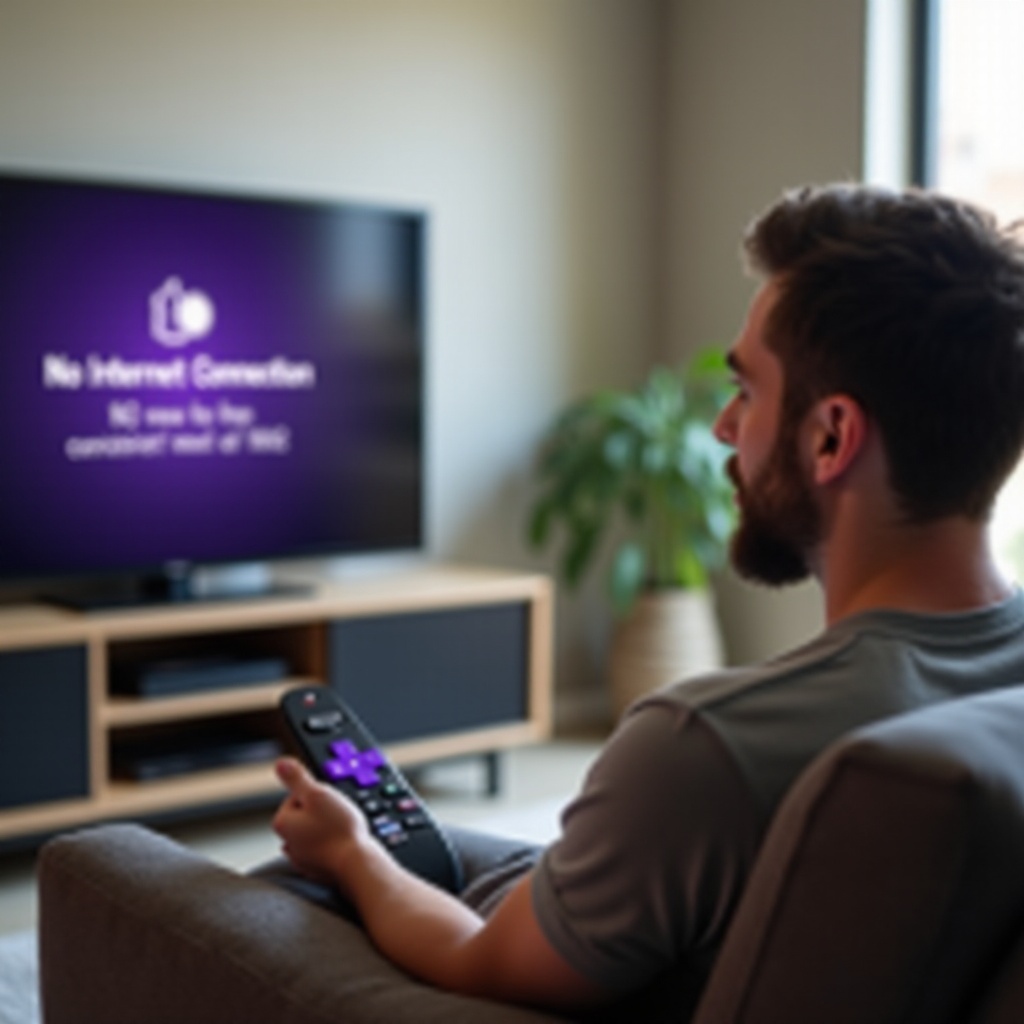
Roku devices are a favorite choice for streaming enthusiasts who enjoy quick and easy access to a vast range of content. However, experiencing issues with your Roku not staying connected to the internet can be frustrating and interrupt your viewing time. Understanding the underlying causes of these connectivity problems is crucial, and this guide will walk you through them and offer clear steps to restore a stable connection.

Common Causes for Connectivity Issues
Understanding why your Roku won’t stay connected to the internet is the first step to resolving this issue. Several factors typically contribute to connectivity problems:
- Weak Wi-Fi Signal: If your Roku device is too far from the router or there are obstacles in the way, it might struggle to maintain a strong signal.
- Outdated Roku Software: Keeping software up-to-date is critical for optimal performance and connectivity.
- Router and Network Problems: Malfunctions in your router or issues with your internet service provider can result in disconnections.
- Interference from Other Devices: Other electronics emitting frequencies close to your router can disrupt the signal.
One or more of these issues could be affecting your network’s performance, but identifying the problem is half the battle. Once you’ve pinpointed the issue, you can explore specific solutions.

Step-by-Step Troubleshooting Guide
Fixing your Roku’s connectivity issues doesn’t have to be daunting. Here is a step-by-step troubleshooting guide to get your device back online smoothly:
-
Check Your Internet Connection: Evaluate the Wi-Fi signal in your home to ensure that it’s strong enough to support Roku streaming. If needed, move your Roku device closer to the router to rule out distance as a factor. Restart your router by unplugging it for a few seconds before plugging it back in to refresh the connection.
-
Restart Your Roku Device: Sometimes a simple reboot can resolve connectivity issues. Navigate to the ‘Settings’ menu, select ‘System’, and then ‘System Restart’ to reboot the device.
-
Update Your Roku Software: Keeping your device’s software current is essential for stable performance. Go to ‘Settings’, then ‘System’, and click on ‘System Update’ to check for and install any available software updates.
-
Adjust Router Settings: In some cases, changing the Wi-Fi channel on your router can reduce signal interference. Check your router’s manual for guidance on how to change channels and select the best option for your environment.
Following these steps should help resolve basic connectivity problems. If your Roku continues to experience issues, more advanced solutions might be necessary.
Advanced Connectivity Solutions
For persistent connectivity issues that the basic steps didn’t resolve, consider these advanced solutions:
-
Changing IP and DNS Settings: Access your Roku’s network settings to manually set your IP and DNS configurations. Choosing a more reliable DNS server can improve connectivity.
-
Factory Reset Your Roku Device: As a last resort, a factory reset may be needed. This will erase all settings and restore the device to its original state. To do this, go to ‘Settings’, select ‘System’, then ‘Advanced System Settings’, and finally choose ‘Factory Reset’.
-
Consider a Wired Connection: If your Roku device supports it, using an Ethernet cable to connect directly to your router can offer a more stable connection than Wi-Fi.
These advanced steps address deeper network issues and provide effective alternatives to fix persistent disconnection problems. After implementing these solutions, enhancing your overall network performance can further bolster your device’s connectivity.
Enhancing Network Performance
Strengthening your home network can significantly enhance the performance of all connected devices, including your Roku:
-
Improving Wireless Signal: Minimize obstructions and avoid placing the router near other electronics that can interfere with signal strength. This includes microwaves, cordless phones, and Bluetooth devices.
-
Optimizing Router Placement: Position the router close to the center of your home, preferably elevated on a shelf or table to maximize its range and signal penetration.
-
Using Wi-Fi Extenders: In larger homes, a Wi-Fi extender can help reach areas with poor coverage, ensuring that you receive a consistent signal throughout your living space.
By focusing on these strategies, you can improve the overall quality of your internet connection, thereby ensuring a smoother streaming experience on your Roku device.
Conclusion
A stable internet connection is crucial for enjoying your Roku to the fullest. By identifying the potential causes and applying the troubleshooting steps provided, you can resolve many common issues that cause your Roku to disconnect from the internet. Should problems persist despite these efforts, consider reaching out to Roku’s customer support or your internet service provider for additional assistance.
Frequently Asked Questions
Why does my Roku keep disconnecting from Wi-Fi?
Your Roku may disconnect due to a weak Wi-Fi signal, poor router placement, or outdated software. Ensure your signal is strong and your software is updated.
How do I update my Roku device?
Go to ‘Settings’, select ‘System’, then ‘System Update’ to check for and install any available updates to keep your Roku running smoothly.
Can a Roku work with an Ethernet cable instead of Wi-Fi?
Yes, connecting via an Ethernet cable can provide a more reliable connection for streaming, especially in areas with weak Wi-Fi coverage.