Changing the battery on your Asus laptop is crucial for maintaining its performance and extending its lifespan. If you’re encountering issues like decreased battery life or your laptop is failing to hold a charge, it may be time for a replacement. This guide will help you identify when to change your battery and walk you through the replacement process.
Recognizing the Need for Battery Replacement
Before getting started with a replacement, determining whether a new battery is necessary is essential. Identifying battery issues early can save both time and effort while keeping your Asus laptop functioning well.
Signs of a Failing Battery
- Rapid Drain: A fast-draining battery indicates it might be time for a swap.
- Overheating: Excessive warmth can signal battery problems and possible damage to your laptop’s internal components.
- Physical Swelling: A battery that’s bulging or deformed requires immediate attention.
- Random Shutdowns: Spontaneous power fails are a clear sign that your battery cannot maintain a charge reliably.
Understanding these signs is crucial to maintaining the reliability of your device.
Assessing Battery Health on Windows
Utilize built-in Windows tools to assess the health of your laptop’s battery:
– Windows Battery Report: Access Command Prompt, input ‘powercfg /batteryreport’, and hit Enter. This generates a report in your user directory.
– Battery Capacity Comparison: Check for differences between ‘Design Capacity’ and ‘Full Charge Capacity’ in your battery report.
These tools help make an informed decision about whether a battery replacement is appropriate.

Preparing for Battery Replacement
Having decided on a battery replacement, the next step is to prepare your Asus laptop and workspace. Proper preparation ensures the replacement process is efficient and safe.
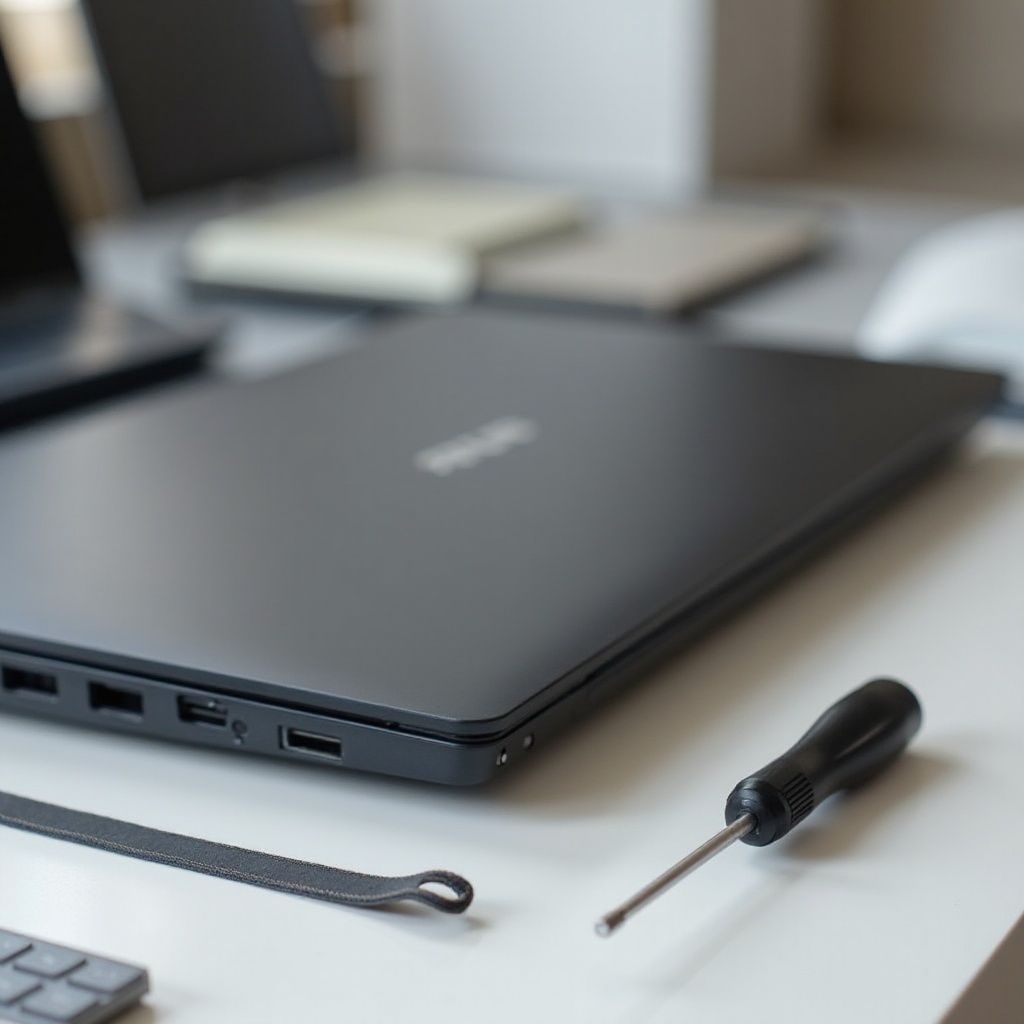
Required Tools and Equipment
- New Battery: Ensure compatibility with your specific Asus model.
- Screwdriver Set: Use precision screwdrivers suited for electronics.
- Anti-static Wrist Strap: Protects your laptop’s sensitive components from static.
- Plastic Pry Tools: Designed to open the laptop casing without damage.
Gathering these tools will streamline your battery replacement process.
Safety Precautions to Consider
To prevent damage and ensure a safe operation:
– Power Off: Turn off and unplug your laptop before starting the replacement.
– Ground Yourself: Use an anti-static wrist strap or touch a grounded metal surface.
– Optimize Workspace: Work in a clean, well-lit, and dry area.
By following these precautions, you safeguard both yourself and your laptop during the process.
Step-by-Step Guide to Replacing the Battery
With all necessary preparations done, we move on to the actual battery replacement.
Accessing the Battery Compartment
- Remove the Back Cover: Unscrew visible screws and carefully pry the cover to open.
- Identify the Battery: Locate the rectangular battery, typically situated in the lower section.
Removing the Old Battery
- Disconnect the Battery Cable: Unplug the cable linking the battery to the motherboard gently.
- Unscrew the Battery: Take out any screws securing the battery in place.
Installing the New Battery
- Insert the New Battery: Position the new battery carefully.
- Reconnect the Battery Cable: Ensure a firm connection with the motherboard.
- Secure with Screws: Fasten the battery securely using screws.
Executing these steps guarantees a successful battery installation.
Testing and Reassembling Your Asus Laptop
Once your new battery is in place, testing its functionality and reassembling your laptop are vital final steps.
Reattaching the Battery Cover
- Replace the Back Cover: Align the cover correctly and press it down gently.
- Secure with Screws: Reattach all screws to hold the panel securely.
Performing a Power Cycle
- Initial Power-Up: Power up your laptop by plugging it in and turning it on.
- Test Charging: Confirm that the new battery is charging as expected.
- Battery Health Check: Generate and review a new battery report to validate improvements.
These steps ensure everything is properly connected and the replacement was successful.
Maintenance Tips for Prolonged Battery Life
Adopting a few best practices can significantly help in extending the life of your new battery.
Optimal Charging Practices
- Avoid Constant Charging: Remove the power adapter once the battery is fully charged to prevent damage.
- Utilize Sleep Mode: Activate sleep mode to save power during inactivity.
Avoiding Common Battery Draining Activities
- Close Unnecessary Programs: Halt unused background applications to conserve power.
- Adjust Brightness: Reduce screen brightness when full brightness isn’t necessary.
Incorporating these habits into daily use stretches your battery’s lifecycle.

Conclusion
Replacing your Asus laptop battery is straightforward with preparation and care. Paying attention to maintenance and early issue detection helps prevent potential problems and ensures your device operates smoothly.
Frequently Asked Questions
What do I do if my new battery isn’t recognized?
Ensure correct installation, compatibility, and consider a soft reset if issues persist.
How often should I replace my Asus laptop battery?
Typically, every 2-4 years, depending on usage and battery indicators.
Where can I find compatible replacement batteries for my Asus laptop?
Purchase from Asus’ official site, authorized dealers, or trusted online platforms to ensure quality.