Introduction
Turning your Mac into a tablet-like device can provide an engaging and flexible way to interact with apps, increasing both convenience and productivity. Whether you want to sketch, design, or have the feel of a touch interface, this guide will take you through all the steps and tools required to transform your Mac into a tablet seamlessly.
Setting Up the Essentials
Before diving into the methods to convert your Mac into a tablet, setting up the essentials is crucial. Start by ensuring your macOS is updated to its latest version. This guarantees compatibility and access to new features that can aid this transformation. Also, verify that your peripherals, such as your iPad or stylus, are in good condition and ready for use.
To streamline this setup:
1. Check for Software Updates: Go to the Apple menu and choose System Preferences > Software Update.
2. Ensure Device Compatibility: Verify that your Mac and iPad support Sidecar or chosen third-party apps.
3. Gather Necessary Devices: Have an iPad, stylus, and charging cables on hand.
Using Sidecar for a Seamless Transition
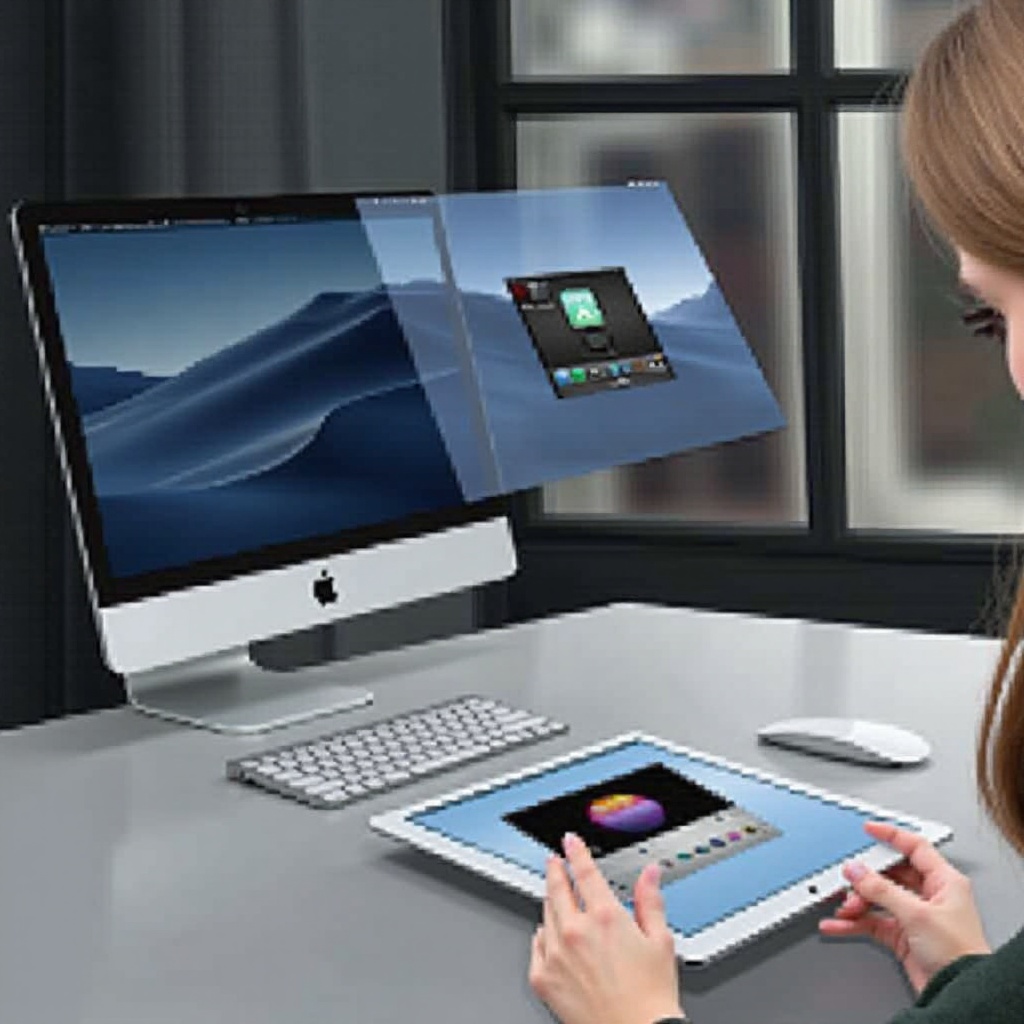
Sidecar is Apple’s built-in feature that allows your iPad to work as a secondary display for your Mac. This feature creates a smooth transition for those wanting to integrate touch functionality into their Mac experience.
What is Sidecar?
Sidecar allows users to extend or mirror their Mac desktop to their iPad, effectively using it as an additional display. This feature is particularly useful for creative tasks like drawing, photo editing, and video production.
How to Enable and Use Sidecar
To enable Sidecar:
1. Connect Devices: Make sure both your Mac and iPad are signed in to the same Apple ID.
2. Wi-Fi and Bluetooth Capabilities: Ensure both devices have Wi-Fi, Bluetooth, and Handoff turned on.
3. Initiate Sidecar:
– On your Mac, go to the Apple menu, select System Preferences > Sidecar.
– Choose your iPad from the dropdown options.
Your iPad now functions as a secondary display. You can drag windows to it, utilize Apple Pencil for precise input, and interact with different apps.
Best Practices for a Smooth Experience
- Minimize Latency: Use a direct connection via a USB-C cable to reduce input lag.
- Optimize Settings: Adjust the display resolution in Sidecar settings for better performance.
- Keep Devices Updated: Regularly update your Mac and iPad to ensure compatibility and performance.
Alternatives to Sidecar
Sidecar is not the only option to turn your Mac into a tablet. Various third-party apps offer similar functionality with distinct features that may cater to different needs.
Duet Display: Setup and Features
Duet Display transforms your iPad into an additional display with touch functionality, similar to Sidecar.
Setup:
– Download the Duet Display app on both your Mac and iPad.
– Connect the devices via USB or Wi-Fi.
– Launch the app to begin.
Features:
– Cross-platform compatibility with Windows and older macOS versions.
– Multiple resolutions and refresh rate options for fluid performance.
Luna Display: Setup and Features
Luna Display turns your Mac into a wireless display adapter for your iPad, providing a robust interface.
Setup:
– Purchase and connect the Luna Display dongle to your Mac.
– Download the app on both Mac and iPad.
– Connect the devices.
Features:
– Hardware-integrated, ensuring low latency and high performance.
– Supports both Mac-to-iPad and Mac-to-another-Mac configurations.
Customizing Your Mac-Tablet Interface
Customizing your Mac to function optimally as a tablet can immensely boost your productivity and user experience. Tailor system preferences to align with your needs and equip yourself with the right applications.
Optimizing System Preferences
Fine-tune system settings to enhance usability as a tablet.
– Touch and Pressure Sensitivity: Adjust settings in the Apple menu, under System Preferences > Accessibility, to modify touch and stylus input.
– Display Settings: Navigate to System Preferences > Displays, then optimize resolution and display arrangement for a seamless workflow.
App Recommendations for Enhanced Productivity
Consider these apps to make the most of your Mac-tablet hybrid:
1. Procreate: Ideal for drawing and sketching, providing a suite of creative tools optimized for touch input.
2. Affinity Designer: A robust graphic design software offering vector and raster workflows.
3. Notability: Perfect for note-taking, featuring handwriting recognition and various annotation options.
4. Astropad: Turns your iPad into a high-end drawing tablet for your Mac, ideal for creative professionals.
Conclusion
Transforming your Mac into a tablet opens up a universe of possibilities for creative and practical applications. Whether using Sidecar or third-party solutions like Duet Display and Luna Display, you can leverage the distinct advantages of a touch interface to enhance creativity and productivity.
Revolutionizing your Mac experience doesn’t need to be complicated. Equipped with the right tools and guidance, integrating tablet functionality is within your reach. Dive in and start exploring endless possibilities today!
Frequently Asked Questions
Can I use my Mac as a tablet without Sidecar?
Yes, you can use third-party apps like Duet Display and Luna Display to achieve similar functionality.
What are the best third-party apps to turn a Mac into a tablet?
Top-rated apps include Duet Display and Luna Display, both providing excellent features and performance.
Is it worth turning my Mac into a tablet?
For users needing a touch interface for graphic design, note-taking, and similar tasks, this transformation can significantly enhance user experience and productivity.