Introduction
Headphones are essential for many of us, providing both an escape and a personal audio experience for listening to music, podcasts, or watching videos. However, it can be incredibly frustrating when you connect your headphones only to find they don’t connect to media devices as they should. Whether you’re using wired or Bluetooth headphones, several issues could be the cause. This guide aims to help you understand the common problems and the steps you can take to resolve them so that your headphones work seamlessly the next time you plug them in.
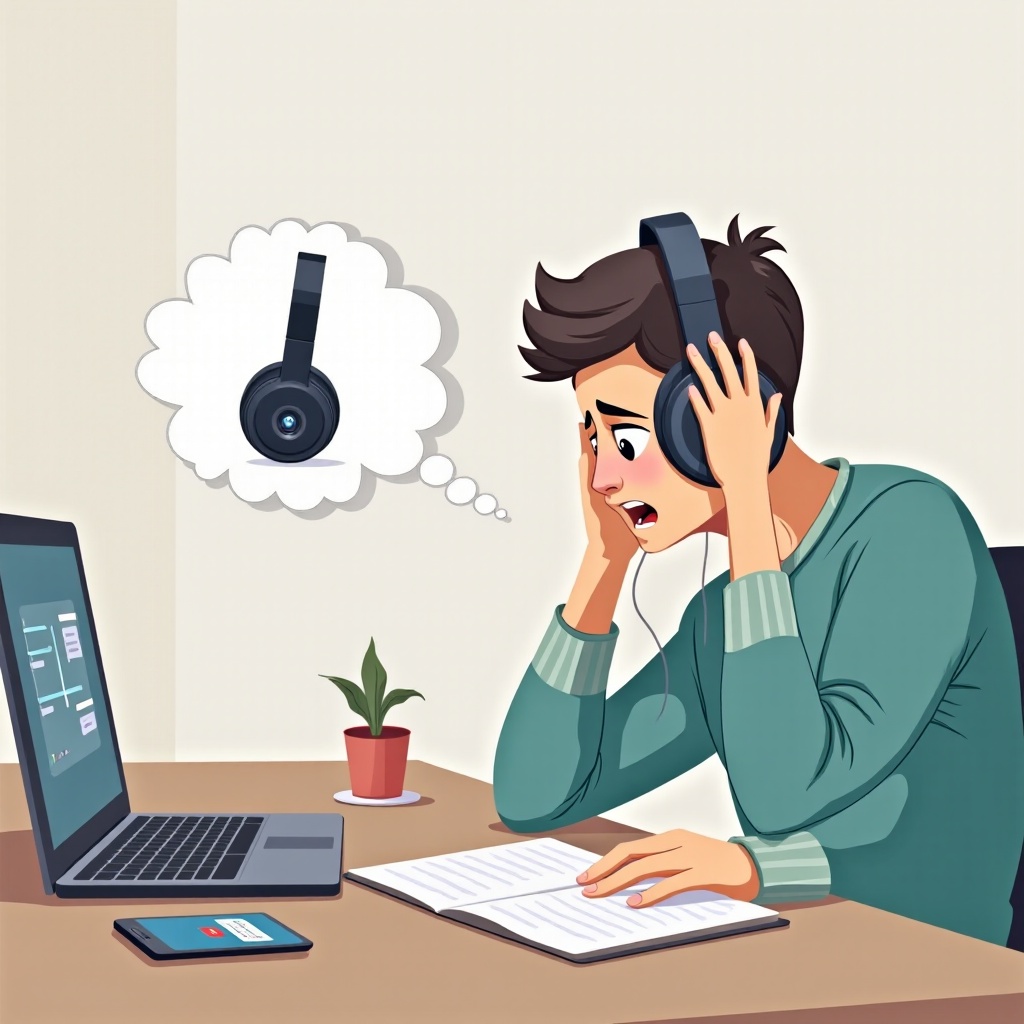
Understanding Common Headphone Connectivity Issues
Before diving into the solutions, it’s crucial to understand what might be causing the issue. Headphone connectivity problems can arise from various sources, such as software glitches, hardware damage, or simple user errors. Recognizing these common issues helps set the stage for effective troubleshooting.
One frequent issue involves device compatibility. Sometimes your headphones might not be fully compatible with the media device you’re trying to use. Similarly, improper pairing often leads to problems, particularly with Bluetooth headphones. Also, outdated software or drivers can disrupt the connection. Understanding these potential issues is the first step in resolving your headphone connectivity woes.
Initial Troubleshooting Steps
Once you’ve identified potential issues, the next step is to start troubleshooting.
-
Checking Compatibility
Ensure that your headphones are compatible with the device you are connecting to. Different devices have different connectivity standards, and ensuring compatibility can save a lot of headaches. -
Ensuring Proper Pairing
Particularly for Bluetooth headphones, proper pairing is essential. Go to your device settings and check that your headphones are correctly paired. Unpair and repair them if necessary. -
Restarting Devices
Sometimes, a simple restart can resolve connectivity issues. Turn off both your headphones and your device, wait a few seconds, and then turn them back on to see if the issue is resolved.
After attempting these initial steps, if the problem persists, you might need to explore more detailed solutions.
Software Solutions
If basic troubleshooting doesn’t fix the issue, it might be time to look at software solutions:
-
Updating Software and Drivers
Software and driver updates can resolve many connectivity issues. Check for updates for your operating system and any relevant device drivers. Keeping your software up to date ensures compatibility and bug fixes. -
Resetting Network and Bluetooth Settings
If your headphones are still not connecting, resetting network and Bluetooth settings can help. This is particularly useful if there are settings conflicts or accumulated cache that might be causing the issue. -
Testing Different Media Players and Apps
Sometimes, the issue might be specific to a particular app or media player. Try different apps to see if the issue persists. This helps identify whether the problem is with the device overall or with a single application.
If software solutions do not resolve the connectivity problem, it is essential to check the hardware.
Hardware Solutions
Hardware issues can often be a significant cause of connectivity problems. Try these steps:
-
Inspecting Headphone Wires and Connectors
For wired headphones, check for any visible damage on the wires or connectors. Damaged wires can often cause connectivity issues. If you find any damage, consider repairing or replacing the headphones. -
Checking Device Audio Settings and Ports
Make sure the audio settings on your device are correctly configured. Sometimes, the issue can be as simple as the audio output being set to speakers instead of headphones. Also, ensure the device ports are clean and free of debris. -
Testing with Another Device
To determine whether the issue lies with your headphones or the device, try connecting your headphones to another device. If they work with the second device, the problem is likely with the first device.
Advanced Troubleshooting
When all else fails, more advanced troubleshooting might be necessary:
-
Using Specialized Repair Tools and Software
Various tools and software can help diagnose and repair connectivity issues. Some manufacturers provide specialized utility tools that can identify and fix common problems. -
Contacting Manufacturer Support
If standard troubleshooting steps don’t solve the issue, reach out to the manufacturer. They can provide advanced support and might be able to replace or repair faulty hardware. -
Considering Hardware Faults
If all else fails, there might be a significant hardware fault with either the headphones or the device. Professional repair services can help diagnose and fix these serious issues.
Conclusion
Dealing with headphone connectivity issues can be frustrating, but most problems are solvable with careful troubleshooting. Start with the basics like checking compatibility and ensuring proper pairing. Move on to software solutions such as updating drivers and resetting settings. Don’t forget to inspect the hardware for any signs of damage. If all else fails, consider advanced troubleshooting methods or seek professional assistance. By following this guide, you’ll be well-equipped to resolve these issues and enjoy your media without interruption.
Frequently Asked Questions
Why do my headphones connect but no sound?
This can happen due to incorrect audio settings, software issues, or hardware damage. Check your audio settings and ensure your device software is up to date.
How can I fix Bluetooth connectivity issues?
Ensure proper pairing, reset Bluetooth settings, and update your device drivers. Contact manufacturer support if the issue persists.
What should I do if my headphones only work with certain apps?
Test to see if the issue lies with specific apps. Ensure the apps and your device software are updated. Reinstall the problematic apps if needed.