Introduction
PlayStation consoles offer incredible gaming experiences but are also susceptible to overheating, which can disrupt gameplay and damage hardware. Recognizing signs of overheating and understanding its causes are critical for maintaining an efficient gaming system. This guide explores common overheating causes, preventive measures, and troubleshooting techniques for PlayStation consoles.
Common Causes of PlayStation Overheating
Understanding the usual culprits of overheating is the first step in prevention.
Inadequate Ventilation and Airflow
A major cause of overheating is poor airflow. When a PlayStation is placed in a cramped space or surrounded by other objects, it cannot vent heat effectively, causing internal temperatures to rise.
Accumulation of Dust and Debris
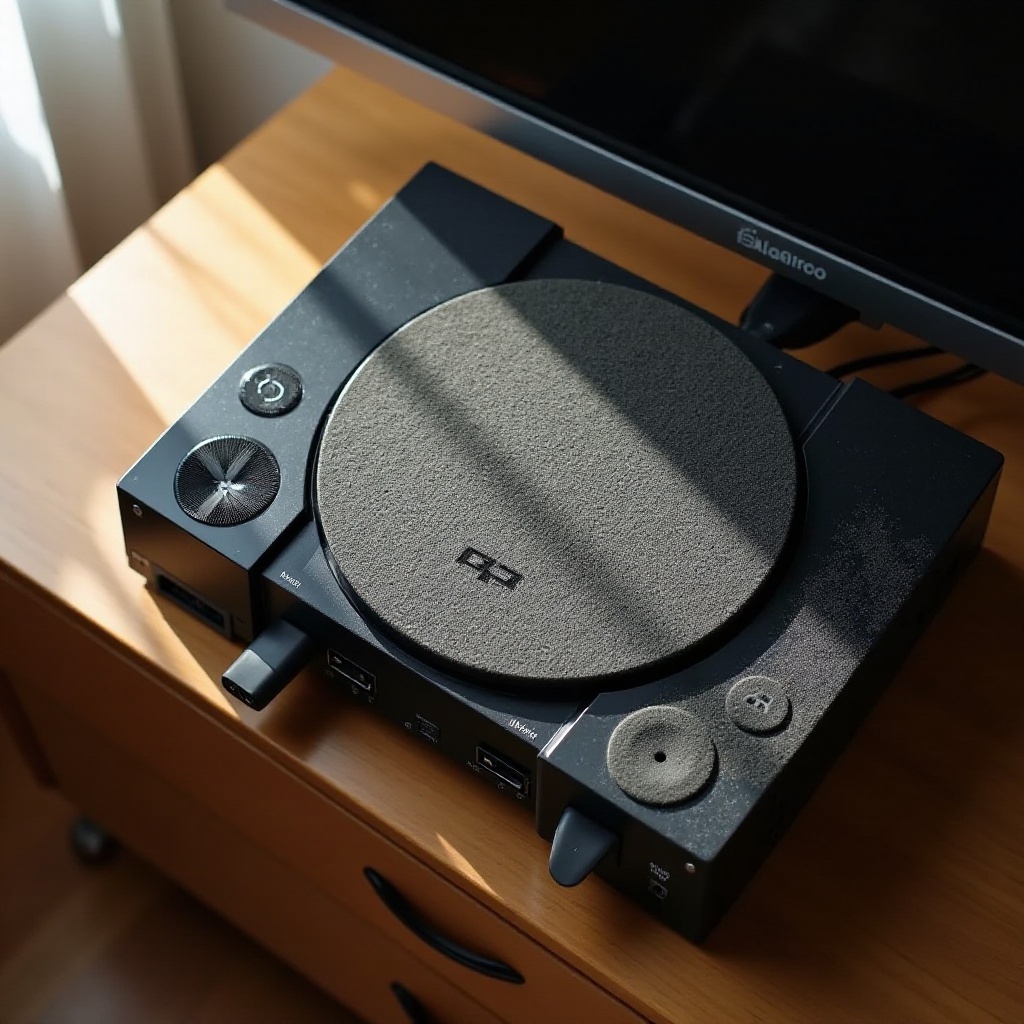
Over time, dust and debris can gather inside the console, blocking vents and diminishing the system’s cooling efficiency. This buildup hinders air circulation, leading to overheating.
Intense Gaming Sessions and High Performance Demand
High-performance games can push the console’s hardware to its limits. Long sessions without breaks may cause overheating, as the system struggles to cope with excessive demands.
Environmental Factors
Room temperature and humidity levels significantly affect your PlayStation. Operating in a hot room exacerbates overheating issues, as additional external heat adds to the internal temperature.
Understanding these causes guides you to create an ideal environment for your console, reducing risks before they become critical.
Signs Your PlayStation is Overheating
Fast detection of overheating signs can prevent severe consequences. Here are some indicators:
Increased Fan Noise
A prominent sign of overheating is the fan becoming unusually loud as it works harder to cool the internal components.
Unexpected Shutdowns and Performance Lags
Overheating may trigger the PlayStation to shut down unexpectedly, protecting its internal hardware and disrupting gaming. Accompanying shutdowns are often performance lags or a noticeable slowdown.
Error Messages Related to Overheating
Your PlayStation may display error messages, warning of overheating issues. These notifications are designed to alert you before any damage occurs.
Being aware of these signs enables quick action, ensuring gaming sessions remain smooth and uninterrupted.
Steps to Prevent PlayStation Overheating
Taking proactive measures can preserve the longevity of your PlayStation. Here are some strategies to ensure it runs cool and efficiently.
Proper Console Placement and Environment
- Place the console in an open area: Ensure ample space around the console for air circulation. Avoid enclosed spaces or rooms with minimal air movement.
- Keep out of direct sunlight: Position the console away from windows or places where it may receive direct sunlight.
Regular Maintenance and Cleaning Practices
- Dust the console regularly: Use compressed air or soft brushes to clean vents and ports, keeping them dust-free.
- Schedule routine checks: Periodically examine your console for dust accumulation or anything obstructing vents, and clean as necessary.
Utilizing Cooling Accessories Effectively
- Consider cooling stands or external fans: These enhance airflow around your console, aiding in temperature management.
- Monitor room conditions: Use air conditioning or fans to maintain a moderate room temperature, assisting the console’s internal cooling efforts.
Moderating Gaming Sessions
- Take regular breaks: During extended gaming sessions, pause occasionally to let the console cool.
- Lower game settings: Run games on lower graphic and performance settings to lessen hardware strain when possible.
By integrating these practices, you can prevent overheating, ensuring optimal performance and extending the console’s lifespan.
Troubleshooting Overheating Issues
Recognizing signs of overheating helps initiate effective troubleshooting steps to address these concerns.
Initial Cooling Steps
- Power down the console: If overheating is detected, immediately shut down and unplug the console to allow it to cool.
- Relocate to a cooler environment: Move the console to a better-ventilated and cooler ambient area.
Performing a System Check
- Verify system updates: Ensure the console’s firmware is up-to-date, as updates frequently contain bug fixes and performance enhancements.
- Inspect internal storage status: Examine the hard drive or SSD for excess clutter and restore space to improve system performance.
When to Seek Professional Repair
- Persistent overheating problems: If issues persist despite personal interventions, it might be time to consult professional support.
- Comprehensive hardware inspection: Professionals can diagnose hardware failures, offering repair or replacement recommendations if necessary.
Following these troubleshooting steps allows effective management of overheating issues and determination of when professional assistance is required.
Conclusion
Addressing PlayStation overheating hinges on understanding its causes, recognizing the signs, and taking preventive measures. Regular maintenance, proper placement, and awareness of environmental factors protect your gaming investment. Proactively adopting these strategies ensures a seamless and enjoyable experience, safeguarding your console for the future.
Frequently Asked Questions
What should I do if my PlayStation overheats during gameplay?
Immediately halt gameplay and power down your console. Allow it to cool in an open space before resuming.
Can using a cooling stand help prevent my PlayStation from overheating?
Yes, cooling stands improve airflow and help dissipate heat more efficiently, aiding in consistent temperature management.
How often should I clean my PlayStation to prevent overheating?
Clean your PlayStation every three to six months, focusing on vents and ports, to prevent dust buildup and maintain efficient cooling.